WiFi: Driver and roaming settings on Algiz 10XR
Last updated: 2026-07-06
Related products: Algiz 10XR
If you are experiencing problems with WiFi roaming, please follow these steps:
Step 1: Install latest WiFi driver:
Download the driver zip file from below. Extract it on the unit and run "Install.bat".
In the following two steps you find the instructions on how to adjust the roaming aggressiveness. The default vallue is 70 and you can try to change it to 60 or 50.
Step 2: Locate the Network Adapter's Registry Location:
- Press Win + R on your keyboard, type regedit, and open the Registry Editor.
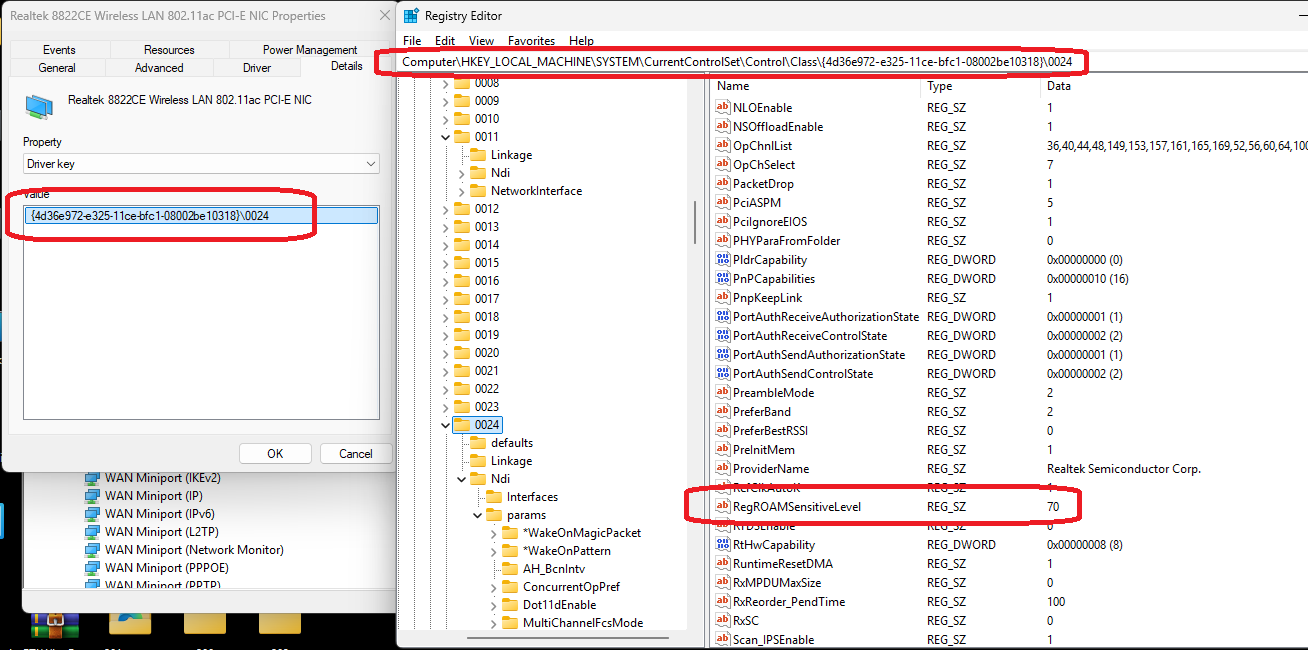
- Navigate to the following path: HKEY_LOCAL_MACHINE\SYSTEM\CurrentControlSet\Control\Class\{4d36e972-e325-11ce-bfc1-08002be10318}
- Under this folder, you will see several subfolders numbered 0000, 0001, 0002, and so on.
- Click through these numbered folders one by one and check the DriverDesc field in the right-hand panel. Find the folder where the value reads Realtek 8822CE Wireless LAN 802.11ac PCI-E NIC.
Step 2: Modify the Roaming Sensitivity Value
- Once you've confirmed you're in the correct numbered folder, look in the right-hand panel for a string value (REG_SZ) named RegROAMSensitiveLevel.
- Double-click RegROAMSensitiveLevel to modify its value data. You can enter one of the following values to determine the roaming aggressiveness:
o 40: Highest
o 50: Medium-High
o 60: Medium
o 70: Medium-Low (default)
3. Close Registry Editor and restart the unit.